



I Almost Lost My Mind When Local APIs Took 7 Seconds
I was testing the aickyway backend locally, and even though nothing in the code changed, API responses suddenly started taking 7 seconds. I thought it might be a FastAPI issue, so I removed all middleware and profiled MongoDB queries - all normal. After wasting half a day, I finally found the cause. It wasn't a code problem - it was a single Windows "Automatically detect settings" option.
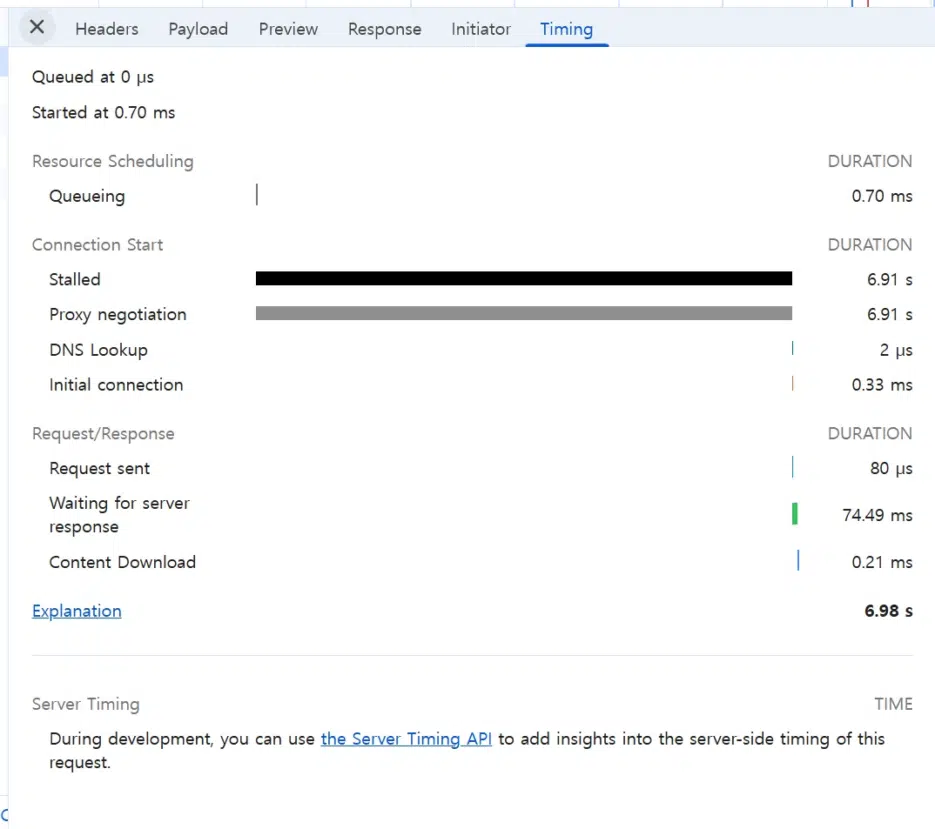
What is "Automatically Detect Settings"?
The official name for this feature is WPAD (Web Proxy Auto-Discovery Protocol). It's a Windows feature that automatically finds proxy servers.
📘 Proxy: A server that relays internet requests, mainly used by companies or organizations for security, speed, and monitoring.
How WPAD Works
- Automatically runs when connecting to a network
- When a browser or app launches, Windows starts looking for "Is there a proxy server on this network?"
- The search proceeds in this order:
- Request server address via DHCP
- DNS lookup for
wpad.companydomain.com - Attempt to download
wpad.datfile
It has to go through all this before concluding "no proxy needed." The problem is that this repeats for every request.
Actual Speed Delay Analysis
When sending API requests to localhost (127.0.0.1),
even without actual network connection, Windows attempts WPAD discovery every time.
| Step | Time | Description |
|---|---|---|
| DHCP request wait | 2 sec | No response |
| DNS wpad.local lookup | 2 sec | Failed |
| DNS wpad.mshome.net lookup | 2 sec | Failed |
| Total | 6.91 sec | API call starts after reaching "no proxy" conclusion |
In the end, the actual API call only took 0.07 seconds, but 7 seconds were wasted looking for a proxy.
Solution
Solution: Turn Off "Automatically Detect Settings"
Win + I→ Network & Internet → Proxy- Turn OFF the "Automatically detect settings" option
This alone immediately improves speed. Local API calls change from 7 seconds → 0.3 seconds!
But Is It OK to Turn It Off in Your Environment?
"Won't turning it off cause problems?" Yes. It can cause issues in some networks.
Company/School Networks
- Must go through a proxy server to access the internet
- Turning it off may block access to external sites (YouTube, Google, etc.) ➡️ Ask IT department for proxy address and set up manually
VPN Environments
- Some VPNs automatically change proxy settings If "auto-detect" is off, it won't apply ➡️ May cause internal network access issues after VPN connection
Home or Personal Development Environment
- Using a personal router
- No proxy server
- If your focus is local development Turning off auto-detect is actually better!
Recommended Settings by Scenario
| Scenario | Recommended Setting | Notes |
|---|---|---|
| Developing at home | Auto-detect OFF | Optimal speed |
| Developing on company network | Manual proxy setup | Ask IT dept |
| Frequent VPN use | Auto-detect ON (only when needed) | Consider security environment |
| Personal local testing | OFF + Exception list localhost;127.0.0.1;192.168.* | Perfect |
Summary of Results
| Setting | Local Dev Speed | Company Network Compatibility |
|---|---|---|
| Auto-detect ON | ❌ 7 sec delay | ✅ Perfect |
| Auto-detect OFF | ✅ 0.07 sec | ⚠️ Manual setup required |
| Manual proxy | ✅ 0.07 sec | ✅ Perfect |
✅ If your environment is for personal development, turning off "Automatically detect settings" is the answer. Performance improves 20x with no side effects.
Now your localhost development will be truly lightning fast.


