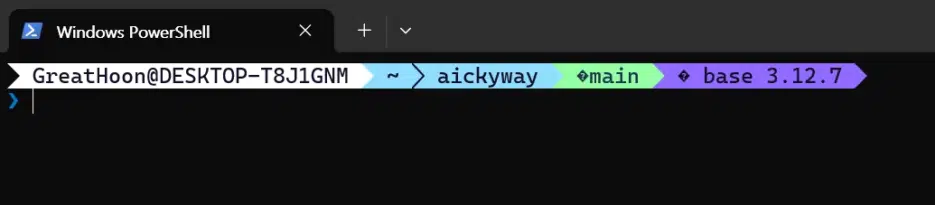
The default PowerShell terminal was too plain, so I tried applying Oh My Posh. I struggled a bit with the settings, and here's a summary of the process. Here's how to install Oh My Posh in Windows, apply themes and Nerd Fonts to perfectly customize your terminal.
1. Installing Oh My Posh
Install with Winget (Recommended)
winget install JanDeDobbeleer.OhMyPosh -s winget
Install with Scoop (Alternative)
scoop install oh-my-posh
Check if it's working properly after installation:
oh-my-posh --version
2. Setting Up PowerShell Profile
To automatically apply Oh My Posh without typing it every time, you need to add initialization code to your PowerShell profile.
① Check Current Profile Path
echo $PROFILE
Usually you'll see a path like this:
C:\Users\username\Documents\PowerShell\Microsoft.PowerShell_profile.ps1
(May be WindowsPowerShell folder for PowerShell 5)
② Create Profile File (if it doesn't exist)
if (!(Test-Path -Path $PROFILE)) {
    New-Item -Type File -Path $PROFILE -Force
}
③ Open Profile
In Administrator PowerShell:
notepad $PROFILE
④ Add the Following Code
oh-my-posh init pwsh --config "$env:POSH_THEMES_PATH\paradox.omp.json" | Invoke-Expression
Save and restart PowerShell to apply the paradox theme.
3. Installing Nerd Font (Fix Icon Display Issues)
Oh My Posh uses various icons that don't display in default fonts. Therefore, you need to install Nerd Font.
① Download Nerd Font
👉 Nerd Fonts Official Site
Examples: FiraCode Nerd Font, Meslo Nerd Font
② Installation Method
- Download zip file and extract
- Select all
.ttffiles → Right-click → Install (or Install for all users)
4. Applying Font to Windows Terminal
- Run Windows Terminal
- Top menu → Settings
- Select the shell you use on the left (e.g., PowerShell)
- Appearance → Font face - enter the installed Nerd Font
(e.g.,
FiraCode Nerd Font)
After saving and restarting the terminal, icons will display correctly.
5. Changing Themes
Oh My Posh offers dozens of themes.
Theme preview:
Get-PoshThemes
Put the desired theme path in your $PROFILE settings. Example:
oh-my-posh init pwsh --config "$env:POSH_THEMES_PATH\agnosterplus.omp.json" | Invoke-Expression
Final Result ✨
- Beautiful prompt + Git status + icon display in terminal
- Emojis/symbols don't break with Nerd Font
- Auto-applied when PowerShell starts
👉 Now your Windows PowerShell has transformed from a simple black window into a powerful and beautiful development environment 🚀